Project Creation and Use
Introduction
Project management in Cue Pro differs fundamentally depending on the operational mode.
Pro Tools Integrated Mode
In Pro Tools Integrated Mode, there is no separate Cue Pro project file. All project data and cues are stored within the Cue Pro Connect plug-in in the Pro Tools® session. This means there is no need to manage separate project files or worry about having the correct project loaded alongside the Pro Tools® session - it is all handled automatically by the Cue Pro Connect plug-in.
Linking to the Pro Tools Session
To get started, create a mono aux channel in the active Pro Tools® session and instantiate the Cue Pro Connect plug-in on it.
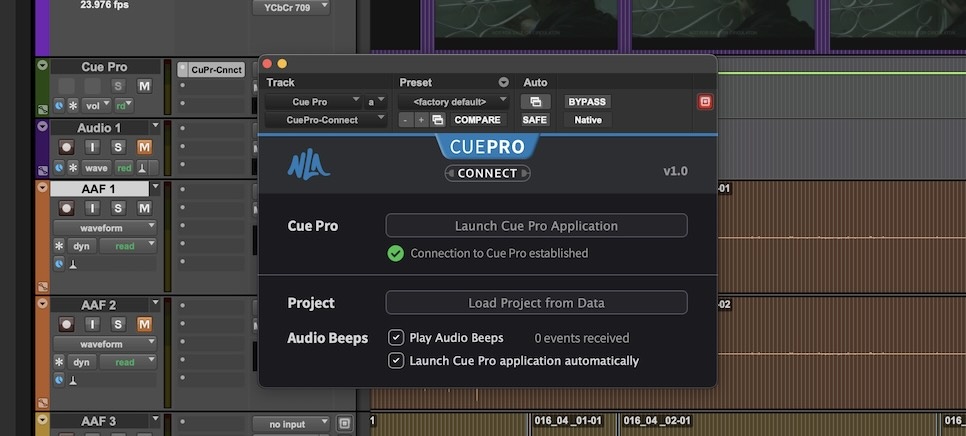
This will by default launch Cue Pro, showing a blank new project. The Pro Tools® version will be shown at the top left of the Cue Pro interface. A timecode overlay will also be superimposed on Pro Tools®' video window.
If Cue Pro is not opened automatically, click the Launch Cue Pro Application button from the Cue Pro Connect plug-in, or launch Cue Pro manually from the Applications folder.
Note: Cue Pro will not launch automatically if the application is renamed or moved from its default install location in the root of the Applications folder.
Keeping the Launch Cue Pro application automatically option enabled in the Cue Pro Connect plug-in will ensure that Cue Pro is always launched automatically when opening a Pro Tools® session containing Cue Pro data.
If Cue Pro is launched manually without a Pro Tools® session containing a Cue Pro Connect plug-in, the interface will be greyed out and inaccessible until the connection is established.
Saving a Project
To save the Cue Pro project with all changes and additions, simply save the Pro Tools® session. Pro Tools® will collect all unsaved changes made in Cue Pro and save them to the project stored inside the Cue Pro Connect plug-in.
Saving can also be initiated from Cue Pro via File → Save Project (or Command & S). When saving from Cue Pro, a Pro Tools® session save is triggered automatically — so both applications show no unsaved changes afterwards. Cue Pro also sends its save data to Pro Tools® automatically every few minutes and when Cue Pro is closed, keeping the plug-in data up to date.
Important: If the Pro Tools® session is closed without saving, the changes made in Cue Pro will be lost. Likewise, if the Cue Pro Connect plug-in is removed, or the track containing the Cue Pro Connect plug-in is deleted, all the associated project data will be lost.
Note: If data is lost by mistake, a recent version of the track containing the Cue Pro Connect plug-in can be imported from a Pro Tools® session file backup. This will restore all of the data that was saved at that point.
Note: The cues can also be saved or exported / shared by saving the Cue Pro Connect plug-in setting in Pro Tools®.
Loading a Project
To load a previous project, simply load another Pro Tools® session containing the associated Cue Pro Connect plug-in. The project will automatically be changed and the data from the new session will populate the Cue Pro interface.
Re-connecting After Idle
If a Pro Tools® session is open with an active Cue Pro project, and the computer is left idle or goes to sleep for long periods of time (for example overnight), the connection between Cue Pro and Cue Pro Connect may be interrupted. This would result in the cues not being shown in Cue Pro. No data is lost in this case - the connection simply needs to be restored. Click the Load Project from Data button in the Cue Pro Connect plug-in in Pro Tools® to restore the connection and display all cues again.
Note: Alternatively, save, close and re-open the Pro Tools® session.
Media Mode
The remainder of this chapter covers Media Mode project management.
A Cue Pro project file contains two things: references to media (including their associated waveform cache) and timelines (including visual events such as Markers & ADR cues). When media is added to a project through any of the import methods, a reference to it is stored in the media bin and will be restored when the project is re-opened. This allows for super fast import and great project media management, as no separate guide audio files are created and no video files are duplicated.
Working with Projects
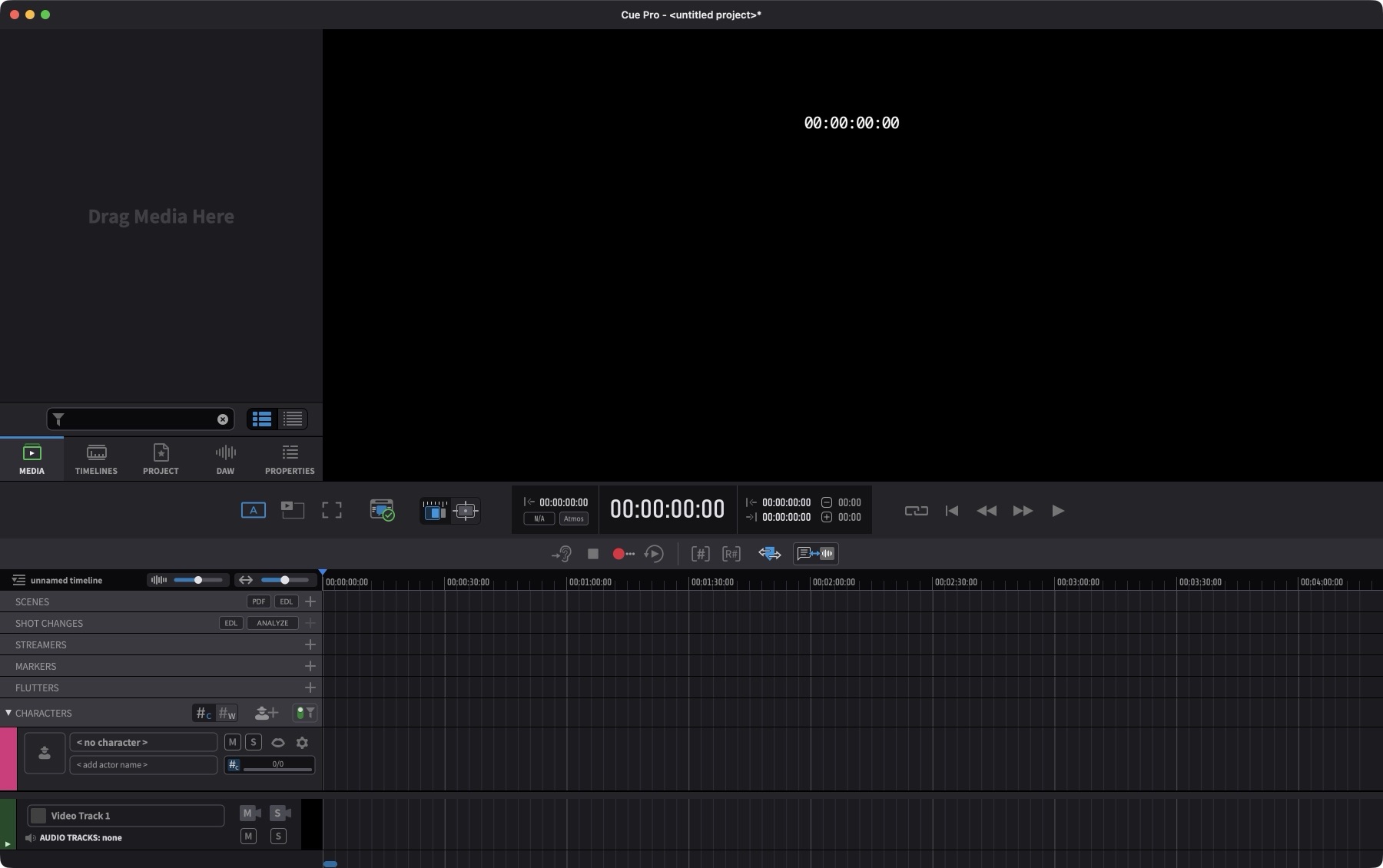
Unless the default MISC project preferences have been changed, when Cue Pro is first launched in Media Mode, it will present a blank project called <untitled project> with a blank timeline called unnamed timeline - into which video can be directly imported.
Saving a Project
To name the current project and save it, go to File → Save Project (or Command & S), choose a location in the browser window and enter a name.
As there is no copied video or audio media with a Cue Pro project, it is not imperative that the project file itself lives on a fast access disk. Although it is advisable to put the video or audio files themselves on fast access disks for the best performance.
Once any further changes have been made, the project can quickly be saved by selecting File → Save Project (or Command & S). When there are unsaved changes, an asterisk (*) appears after the project name in the title bar.
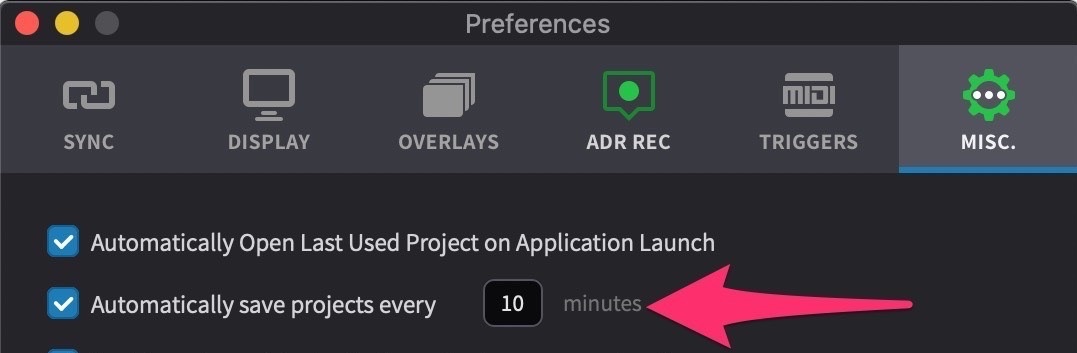
The Project auto-save preference, Automatically save projects every (x) minutes can be found in Preferences / Settings → MISC tab.
When this checkbox is set, Cue Pro will automatically save the project at a definable minute interval which can be set in the text box.
Note: In order to prevent playback being interrupted, saving only occurs when not playing back.
The size of the Project file is vastly increased when waveform processing is enabled. To keep files smaller for easier sharing, disable the Process waveform overviews field in Preferences / Settings → MISC tab.
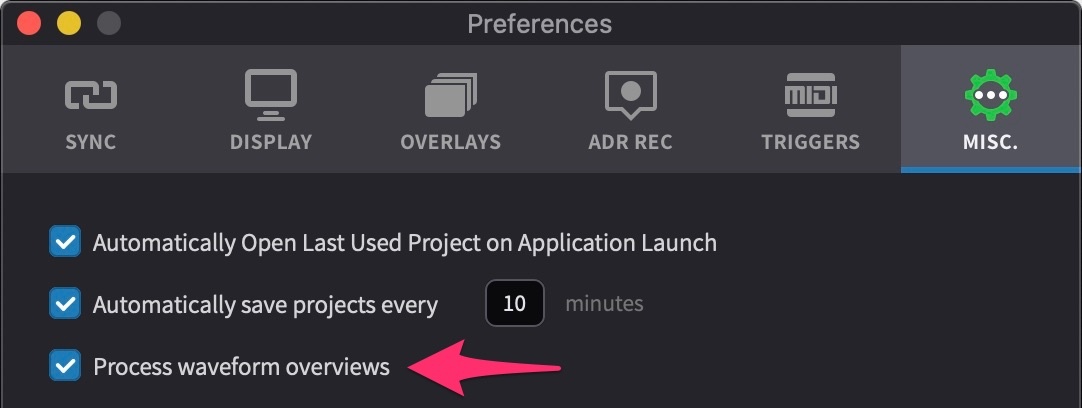
Where waveforms are not required (for example where all the audio is being played back from the DAW and only video is being played back in Cue Pro), having this field disabled will also improve UI responsiveness.
Project Backups
In addition to the auto-save preference described above, Cue Pro automatically maintains a rolling set of project backups. This runs independently of the auto-save setting and requires no configuration - it is always active in Media Mode.
Every five minutes, Cue Pro checks whether the project data has changed since the last backup. If changes are detected, a timestamped copy of the project file is saved to a Project Backups folder located alongside the project file. If no changes have been made, the backup is skipped. Backups are also skipped while the transport is playing, to avoid interrupting playback.
Up to five backup versions are kept. When a new backup would
exceed this limit, the oldest backup is automatically deleted.
Backup filenames include the date and time they were created -
for example,
Project Name_backup_2026-05-12_15-11-38.adrpr.
Project backups do not affect the unsaved-changes indicator in the title bar. A project with unsaved changes will continue to show the asterisk (*) even after a backup has been written - the backup is a safety net, not a substitute for saving the project.
To restore a previous version, open the Project Backups folder next to the project file and double-click the desired backup.
Loading a Project
To load a previous project, either double-click it in the Finder, or go to File → Open Project (shortcut Command & O) and choose the project from the browser window. File → Open Recent provides quick access to recently used projects. If a Pro Tools® session with an active Cue Pro Connect plug-in is connected, the session also appears in the Open Recent list - selecting it loads the Cue Pro Connect cue data as though opening a project file.
The Project loading preference, Automatically Open Last Used Project on Application Launch can be found under the general settings in the MISC tab of the Preferences / Settings window:
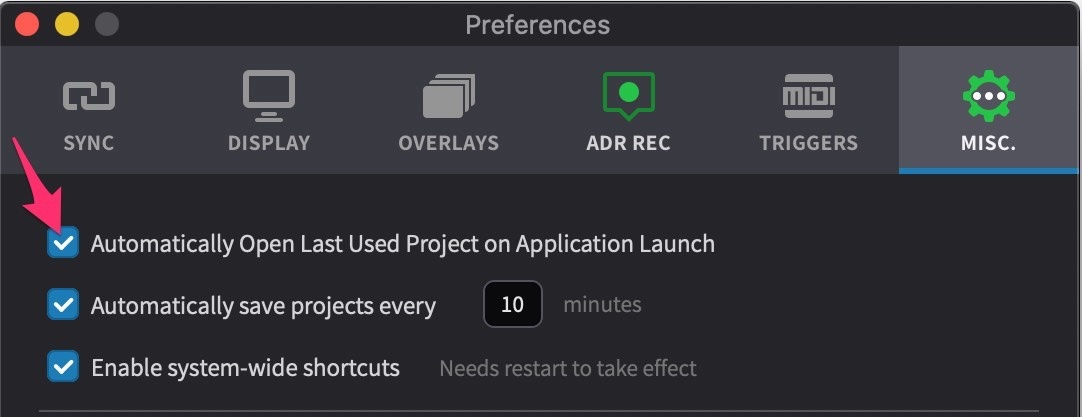
If set, Cue Pro will open the last used project when it launches.
Note: If the project cannot be found at the original location (e.g. if it was on an unavailable drive), it will create a blank project instead.
Importing from Cue Pro Connect
Visual events created by Cue Pro (or previously saved to Cue Pro Connect by Cue Pro) and stored within the Cue Pro Connect plug-in can be imported into a Media Mode project. This requires an open and actively connected Pro Tools® session with Pro Tools® 2025.6 or later.
This behaves in the same way as loading a different Cue Pro project - the current project will first be closed. It is advised to save the current project before proceeding.
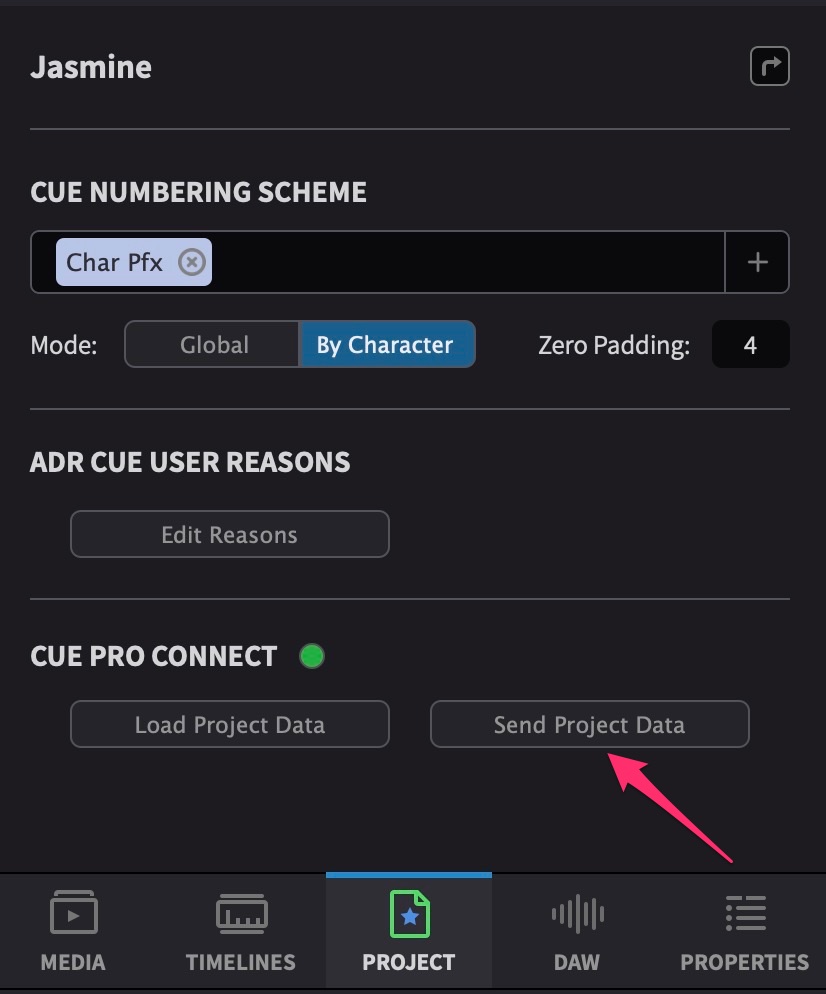
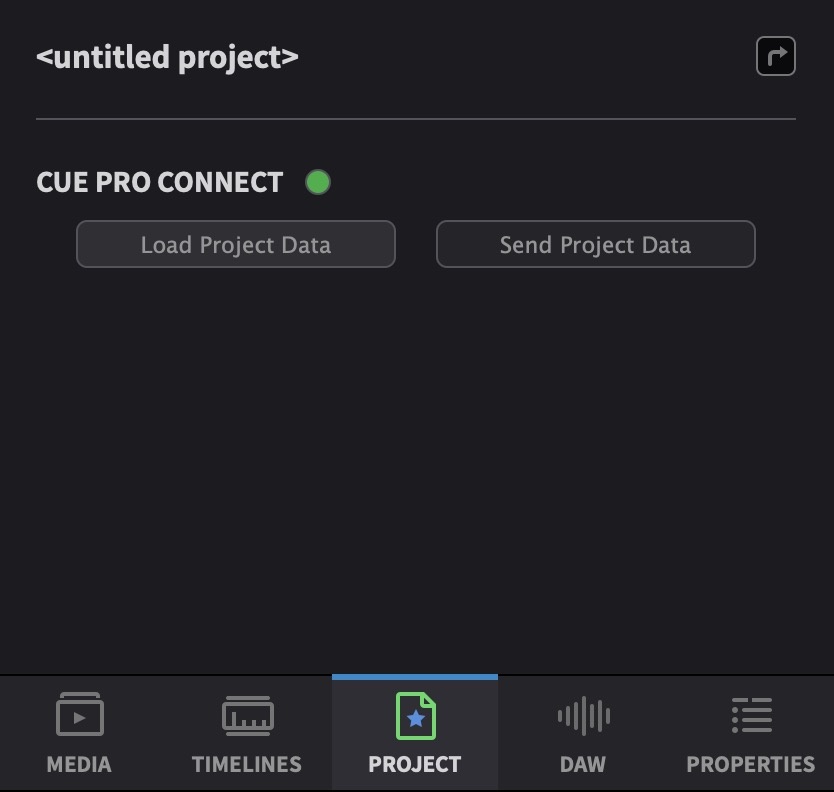
In the Cue Pro Connect section at the bottom of the PROJECT tab, click on the Load Project Data button to import the Cue Pro Connect visual events.
Exporting to Cue Pro Connect
Once recordings are complete, or all changes have been made to the visual events in a Media Mode project, these can be written back to the Cue Pro Connect plug-in of the open and actively connected Pro Tools® session.
Note: All existing cue data stored in the Cue Pro Connect plug-in will be deleted and replaced with the updated cue data from Cue Pro.
In the Cue Pro Connect section at the bottom of the PROJECT tab, click on the Send Project Data button to export the visual events to Cue Pro Connect.